If your new television seems unnaturally smooth, like everything is playing out in slow-motion or a low-budget drama, you’re not imagining it. Most modern TVs apply a feature called “motion smoothing” – often known as the “soap opera effect” – that alters how movement appears on screen. While some find it useful, many viewers, including filmmakers and critics, consider it a distortion of the intended visual experience.
The Problem: Artificial Smoothness
The soap opera effect is a result of TVs inserting artificial frames between the original ones. This process reduces motion blur on LCD screens, which struggle with fast-moving images. High refresh rate (120Hz, 240Hz) TVs rely on this interpolation to maximize their performance, but it also alters the natural look of content.
The issue is most apparent with movies and scripted TV shows, designed for a 24 frames-per-second (fps) cadence. The standard frame rate of film creates a natural blur that audiences expect. Motion smoothing converts this to 30 or 60 fps, making the picture look jarringly artificial.
Why does this matter? The visual style of film and TV is deliberate. The soap opera effect undermines the creative choices of directors and cinematographers, effectively altering their work without consent.
The Industry’s Reaction
Filmmakers actively discourage this feature. Tom Cruise and Christopher McQuarrie released a PSA in 2018 urging viewers to disable motion smoothing. Many TV manufacturers now include a “Filmmaker Mode” specifically designed to eliminate this effect.
The industry’s reluctance to eliminate this setting entirely is likely rooted in marketing: the feature justifies the higher price tag of high-end TVs. However, the effect remains controversial, and many viewers prefer to turn it off.
How to Disable Motion Smoothing
The exact settings vary by manufacturer, but here’s where to look:
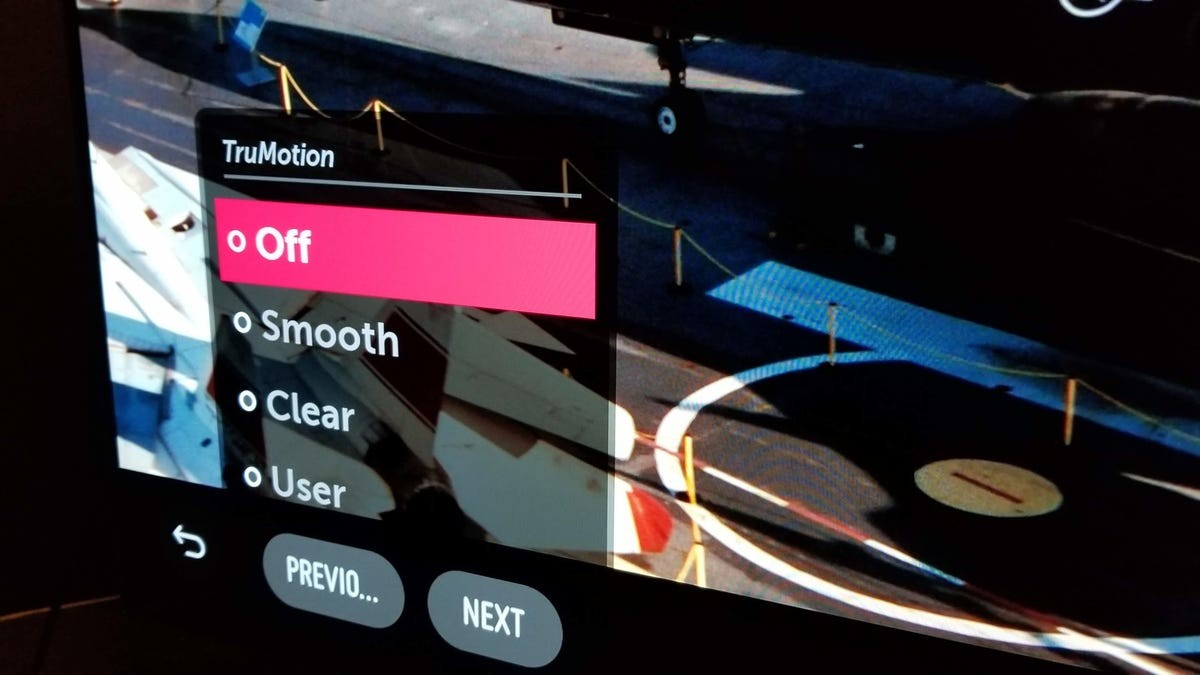
- LG: TruMotion
- Google TV: MEMC or Motion Enhancement
- Hisense: Motion Enhancement
- Samsung: Picture Clarity or Auto Motion Plus
- Sony: MotionFlow or TruCinema
- TCL: Action Smoothing
- Vizio: Motion Control
Step 1 : Switch to Filmmaker, Movie, Cinema, or Calibrated mode. These presets often disable smoothing by default. Adjust brightness as needed.
Step 2 : Dive into “Advanced” or “Expert” picture settings to confirm that motion interpolation is fully turned off.
For sports or live events, keeping smoothing enabled can enhance clarity. But for movies and scripted shows, disabling it restores the intended visual experience.
“Motion smoothing fundamentally alters the artistic intent of a film. It’s a matter of respecting the creator’s vision.”
Ultimately, understanding and controlling this feature allows viewers to enjoy content as it was meant to be seen. The goal is not to eliminate the feature entirely, but to make sure that viewers can choose whether or not they want it on.