Upgrading your computer’s storage is often straightforward, but moving your operating system and data to a new drive can be trickier. While a fresh OS install is recommended, cloning your existing drive offers a faster, more convenient solution. This guide provides a clear, step-by-step process for cloning a hard drive on both Windows and macOS systems.
Зміст
Why Clone Instead of Reinstall?
Cloning duplicates everything from your old drive to the new one, including the OS, applications, and files. This saves significant time compared to reinstalling everything from scratch. It’s ideal when upgrading from an HDD to an SSD, increasing storage capacity, or replacing a failing drive.
Preparation: Connecting the Drives
Before cloning, you need both drives connected to your computer: the source (the drive you’re copying from ) and the destination (the new drive).
- Internal Upgrade: If your PC has a spare drive bay, install the destination drive alongside the existing one.
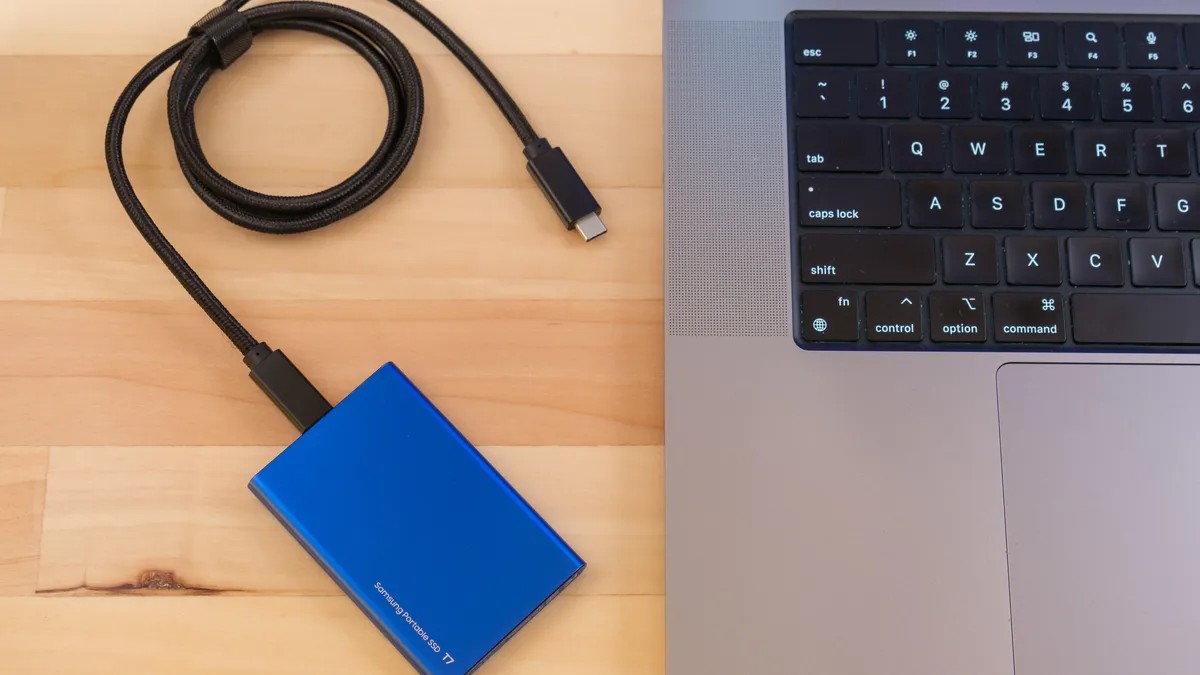
- USB Enclosure: If no spare bay exists, use a USB enclosure to connect the destination drive externally. This works for NVMe SSDs, SATA SSDs, and HDDs.
Capacity Matters: Ensure the destination drive has at least as much usable space as the source drive. Cloning software can shrink partitions if necessary, but compatibility isn’t guaranteed.
Cloning on Windows: DiskGenius
Several Windows utilities clone hard drives, but DiskGenius is recommended for its simplicity and effectiveness.
- Download and Install: Obtain DiskGenius from the official website and run the installer.
- Launch Cloning: In DiskGenius, go to Tools > Clone Disk. Select the source drive and click OK.
- Skip System Migration Prompt: If prompted about system migration, click No.
- Select Destination: Choose the target SSD or HDD and click OK.
- Start Cloning: Click Start to begin the cloning process.
For OS migration specifically, DiskGenius also offers a System Migration tool under Tools. This streamlines the process for moving your operating system to a new drive.
Cloning on Mac: SuperDuper!
Apple Silicon Macs have storage soldered in, making drive swaps impossible. Cloning is still possible, but requires third-party tools like SuperDuper!. macOS Time Machine can also be used for backups.
- Format Destination: First, format the destination drive as APFS using Disk Utility.
- Download SuperDuper!: Install SuperDuper! from the official website.
- Grant Full Disk Access: Follow the app’s prompts to grant it full disk access in System Settings.
- Select Source and Destination: In SuperDuper!, choose the source drive and then the target drive.
- Copy Now: Ensure “Backup – all files” is selected, then click Copy Now to start the cloning process.
Alternatively, use Time Machine to create a backup of your Mac’s hard drive. This method is ideal for moving your macOS installation without cloning the entire drive.
Final Steps: Booting and Swapping
After cloning, boot from the new drive to verify functionality. On Windows, adjust boot order in BIOS. On Mac, use Startup Manager (hold Option during startup). Once confirmed, physically swap the drives if upgrading an internal drive.
Important Note: Always back up critical data before cloning, as the process may overwrite the destination drive.
Cloning a hard drive is a practical way to upgrade storage without reinstalling your OS. By following these steps, you can ensure a smooth and efficient transition for both Windows and Mac systems.