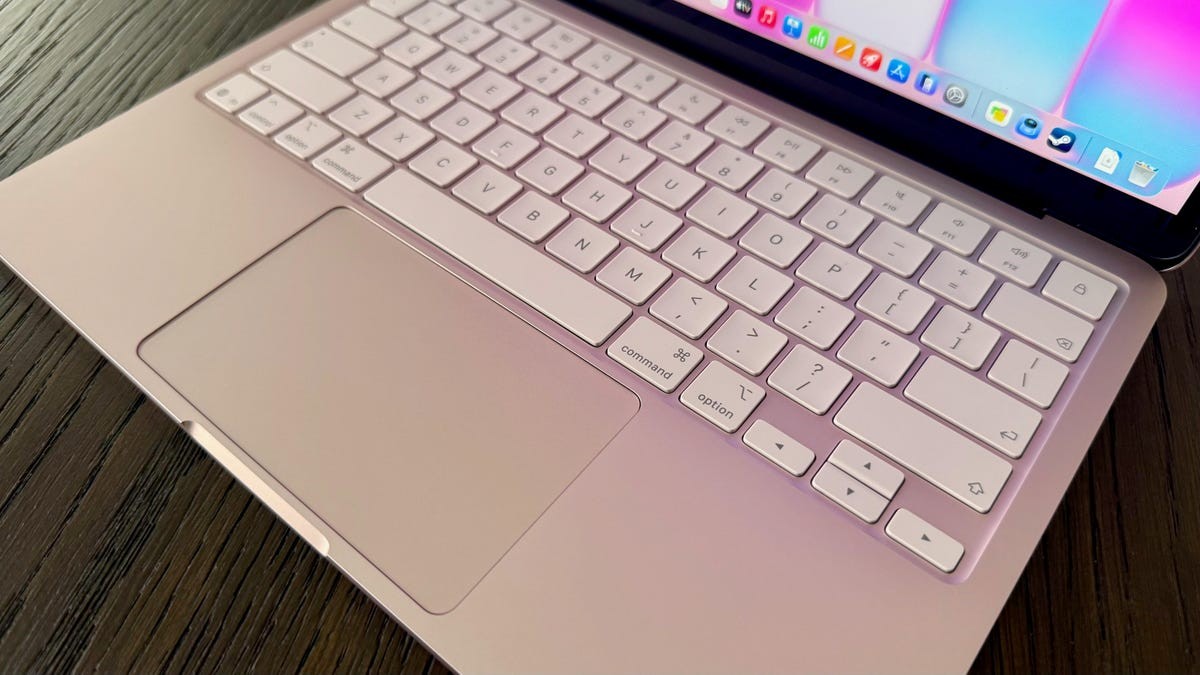
For both newcomers and long-term Mac users, mastering keyboard shortcuts can dramatically improve workflow speed and comfort. The Mac operating system, while familiar to many, has unique shortcuts that differ from Windows or other platforms. These shortcuts aren’t just about saving time; they’re about reducing reliance on the mouse, allowing for fluid, uninterrupted operation.
Зміст
Basic Shortcuts for Common Tasks
The foundation of Mac shortcuts revolves around the Command key (⌘), which replaces the Control key found on most PCs. Here’s a quick guide to core actions:
- ⌘ + C: Copy selected text or items. This is the universal shortcut for duplication.
- ⌘ + X: Cut selected content. Essential for moving elements within documents or folders.
- ⌘ + V: Paste copied or cut material. The counterpart to copy and cut.
- ⌘ + Z: Undo the last action. A lifesaver for accidental deletions or edits.
- ⇧ + ⌘ + Z: Redo an undone action. Reverses an undo, restoring the previous state.
- ⌘ + A: Select all items in a window or document. Useful for bulk operations.
Screenshots and Screen Recording
Mac’s screenshot tools are powerful and accessible via keyboard shortcuts:
- ⌘ + ⇧ + 3: Capture the entire screen. Instantly saves a full-screen image.
- ⌘ + ⇧ + 4: Capture a selected portion of the screen. Activates a crosshair cursor for precise selection.
- ⌘ + ⇧ + 5: Access advanced screenshot options, including timers and video recording. This also allows recording of the entire screen, a selected window, or a defined area. Pressing the combo again stops recording.
Typing Shortcuts for Special Characters
Mac offers shortcuts for entering special characters without using character viewers:
- ⌥ + E: Insert an acute accent (´). Useful for languages like Spanish or French.
- ⌥ + I: Insert a caret (ˆ). Common in Portuguese and other languages.
- ⌥ + N: Insert a tilde (˜). Frequently used in Spanish and Portuguese.
- ⌥ + U: Insert an umlaut (¨). Essential for German and Scandinavian languages.
- ⌥ + O: Insert the letter ø. Used in Danish and Norwegian.
Web Browsing Shortcuts for Efficiency
Browser shortcuts boost navigation speed:
- ⌘ + T: Open a new tab. The quickest way to expand your browsing session.
- ⌘ + W: Close the current tab. Removes the active tab without closing the entire window.
- ⌘ + Q: Close the current application. Exits the app entirely.
- ⌘ + L: Select the address bar in your browser. Instantly focuses the search field.
- ⌘ + N: Open a new Finder or browser window. Launches a new instance of the application.
- ⌘ + ⇧ + T: Reopen the last closed tab. Recovers a recently dismissed tab.
- ⌘ + R: Refresh the current page. Reloads the current content.
- ⌘ + 1-9: Switch between tabs 1-9. Navigate tabs without using the mouse.
- ⌘ + ~: Cycle between open windows. Quickly move between different applications.
- ⌘ + +: Zoom in on the current page. Enlarges content for better visibility.
- ⌘ + -: Zoom out on the current page. Reduces content size.
Mastering these shortcuts requires practice, but the payoff is a streamlined workflow and increased productivity. The key is repetition until these actions become muscle memory.
These shortcuts aren’t an exhaustive list, but a solid foundation for improving Mac usage. Apple’s support website provides further options for customization and advanced commands.