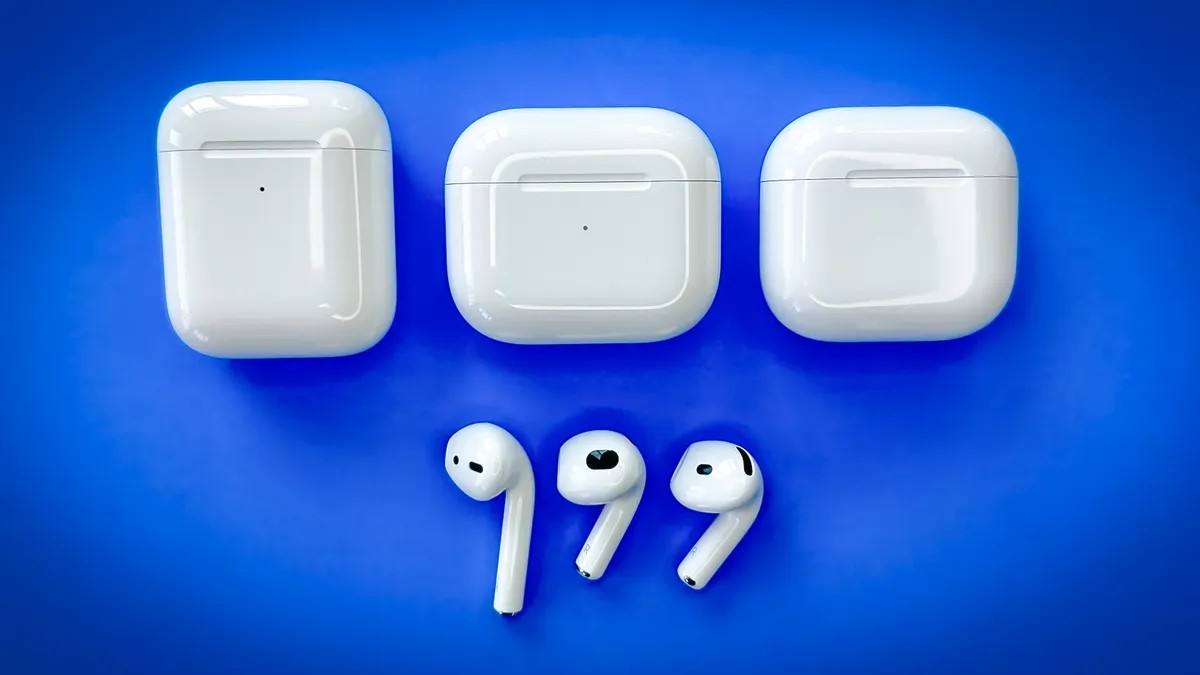
There is a distinct frustration in settling into a long flight or a quiet evening, only to discover that one of your AirPods has gone silent. While it can feel like a hardware failure, this issue is rarely permanent. Most often, it stems from a simple software glitch, a connection error, or a lack of power rather than broken components.
Before resorting to drastic measures, follow this logical troubleshooting path. These steps are designed to isolate the problem, starting with the simplest checks and moving toward a full factory reset if necessary.
Зміст
Step 1: The Essentials Check
Before diving into technical fixes, rule out the most common oversights. These three factors account for the majority of “one AirPod not working” cases.
- Verify Bluetooth Connectivity: It is easy to accidentally disable Bluetooth while adjusting other settings. On your iPhone, swipe down from the top-right corner to open Control Center. Ensure the Bluetooth icon is blue. If it is gray, tap it to activate.
- Confirm Battery Levels: Place both AirPods in their case and open the lid near your iPhone or iPad. A pop-up will display the battery status for each earbud and the case. If one earbud shows a low percentage, it may not have charged properly the last time it was stored. Allow them to charge for at least 30 seconds before proceeding.
- Update Your iOS: Outdated software can cause compatibility issues with accessories. Go to Settings > General > Software Update to ensure your device is running the latest version.
Step 2: Isolate the Faulty Earbud
If the basics don’t resolve the issue, perform a specific test to confirm which AirPod is malfunctioning and to reset its individual connection state.
- Place both AirPods in their case and close the lid. Wait 30 seconds.
- Open the lid near your iPhone or iPad and wait for the connection prompt to appear on the screen.
- Take only the non-working AirPod out of the case and place it in your ear. Leave the other AirPod inside the case with the lid closed.
- Play audio. If the sound works, the hardware is likely fine, and the issue was a sync error between the two buds.
- If it works, place both AirPods back in the case, repeat steps 1 and 2, and then place both in your ears to verify full stereo functionality.
Step 3: Perform a Factory Reset
If isolation does not fix the problem, a full reset is usually the most effective solution. This process clears cached connection data and forces the AirPods to establish a fresh link with your device.
For Standard AirPods Models (1st, 2nd, 3rd Gen, Pro):
- Ensure both AirPods are in the charging case with the lid closed.
- Wait 30 seconds, then open the lid.
- On your iPhone or iPad, go to Settings > Bluetooth.
- Find your AirPods in the device list and tap the “i” (info) icon next to them.
- Select Forget This Device and confirm.
- With the lid open, press and hold the setup button on the back of the case for about 15 seconds.
- Release the button when the status light flashes amber, then white. The white flash indicates the AirPods are in pairing mode.
- Hold the case near your iPhone and follow the on-screen setup instructions.
For AirPods 4 (Standard Model):
Since the AirPods 4 case lacks a physical button, the reset process is different:
- Forget the device via Bluetooth settings as described above.
- Open the case lid.
- Double-tap the front of the case while the status light is glowing.
- Double-tap again when the light flashes white.
- Double-tap a third time when the light flashes faster.
- When the light turns amber, the AirPods are ready to reconnect. Hold the case near your iPhone to complete pairing.
Step 4: Check for Physical Obstructions
If a reset fails to restore functionality, the issue may be physical rather than digital. Earwax, dust, or debris can clog the speaker mesh or microphone ports, muting audio or preventing the AirPod from registering as “in use.”
Inspect the speaker mesh and charging contacts on the problematic AirPod. Use a dry, soft-bristled brush or a clean, dry cotton swab to gently remove any visible debris. Do not use liquids or sharp objects, as this can damage the delicate components.
Note: Consistent maintenance is key. Regularly cleaning your AirPods and case prevents buildup that leads to connectivity and audio issues over time.
Conclusion
In most cases, a silent AirPod is a temporary glitch resolved by a simple connection reset or a firmware update. By systematically checking power, software, and physical cleanliness, you can restore full functionality without needing professional repair. If the issue persists after a factory reset and thorough cleaning, it may indicate a hardware defect requiring Apple Support.