Most new TVs don’t perform at their best right out of the box. While high-end models offer incredible visual capabilities, default settings often fall short of optimal viewing. Fortunately, improving your Vizio TV’s picture quality doesn’t require expert knowledge or expensive equipment—just a few adjustments in the settings menu.
This guide will walk you through the key adjustments, from basic picture modes to advanced settings, helping you fine-tune your TV for the best possible experience. The key is to change one setting at a time and observe the results; if you don’t like the change, it’s easy to revert.
Зміст
Navigating the Settings
Before diving in, ensure your TV is connected to Wi-Fi, HDMI cables are secure, and any unnecessary data-sharing policies are disabled. Vizio’s menu layout varies slightly by model year, but the core options remain consistent. Keep in mind that picture settings are often input-specific; however, you can apply a preferred mode to all inputs from the main picture menu or create a custom mode for individual inputs.
Essential Picture Settings
The biggest impact on your viewing experience comes from adjusting fundamental settings.
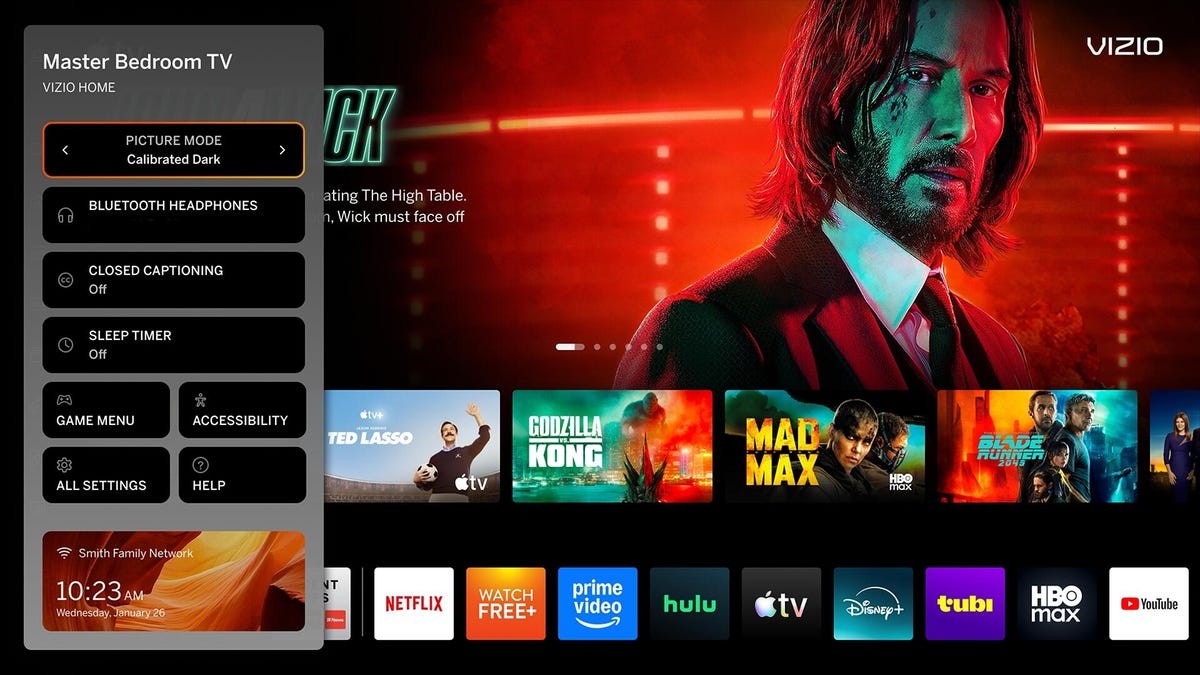
Picture Mode: This setting alters multiple visual elements simultaneously. For the most accurate and realistic image, choose Calibrated or Calibrated Dark (the latter is best for low-light environments). Avoid modes like Vivid or Standard, which exaggerate colors and contrast, deviating from the creator’s intended look.
Backlight/Brightness: Adjusts the overall light output. Experiment with different levels, keeping in mind that higher brightness may be uncomfortable at night. Some TVs offer auto-brightness, which adjusts based on ambient light; if it dims too aggressively, lower the sensitivity.
Contrast: Controls the brightness of the brightest parts of the image. Too high, and details will be lost; too low, and the picture will appear washed out. Fine-tune this with bright daytime content, avoiding extreme adjustments. Disable the Contrast Enhancer feature, as it often introduces unwanted noise.
Black Level: Adjusts the brightness of the darkest parts of the image. Too low results in a muddy, undefined black; too high makes shadows appear gray. Test with dark scenes from movies like The Batman to find the sweet spot.
Color & Hue: These should generally remain untouched, as they’re usually calibrated correctly at the factory.
Gamma: A more complex setting that affects mid-brightness tones. Start with 2.2 and adjust based on preference; higher values create a more contrasty image but can appear overly dark, while lower values may look washed out.
Fine-Tuning Clarity & Sharpness
Sharpness: Set this to zero or near zero. The sharpness control doesn’t add detail but artificially enhances edges, introducing noise and obscuring fine textures.
Clarity Settings: Vizio’s “Clarity” menu often includes options like Super Resolution and Noise Reduction. Use these with caution, as they can introduce artifacts. They may marginally improve low-resolution content (DVDs, standard-definition TV) but won’t magically transform it into 4K. Disable these features for high-quality content.
Color Temperature: Adjusts the image’s warmth (orange/red) or coolness (blue). The Warm setting is usually the most realistic, but may appear reddish initially. Allow your eyes time to adjust; the cooler settings may seem unnatural afterward.
Advanced Settings for Enthusiasts
Vizio TVs offer additional settings for deeper customization.
Active Full Array: Enables local dimming, improving contrast. Be aware of potential blooming (bright halos around objects on dark backgrounds). Experiment with different levels to find the balance between contrast and blooming.
Motion Control: This is the most contentious setting. Features like Motion Estimation or MEMC reduce motion blur by inserting artificial frames, resulting in the dreaded “soap opera effect.” Turn these off for movies and scripted TV to preserve the intended cinematic look. For sports and games, they can enhance sharpness. Disable Judder Reduction and enable Film Mode to minimize artifacts.
Conclusion
Optimizing your Vizio TV’s picture quality is a simple process that yields significant improvements. By systematically adjusting these settings, you can unlock the full potential of your display, delivering a more immersive and accurate viewing experience. Remember to make changes gradually, testing each adjustment before moving on to the next.