Computers cannot speak the language of the screen. They say binary. Especially older screens often speak electricity waves. This imbalance causes friction. To compensate for this, the system relies on specific cables and adapters to determine how the pixels actually appear on the glass.
This friction defined two great eras of PC connectivity: the analog era of VGA and the digital transition to DVI. Understanding this change means more than just nostalgia. It’s all about signal integrity, latency, and why modern 4K displays behave differently than the clunky CRT boxes they replace.
Зміст
Analog VGA Legacy
Most CRT monitors require an analog signal. Think continuous waves instead of discrete pulses. However, computers are essentially digital machines. They process data as 0’s and 1’s. Therefore, the conversion phase becomes mandatory.
Enter the video adapter. This expansion part, often called a graphics card or GPU, is located inside your computer. Take a digital frame buffer and convert it to an analog signal. This transformation is a weak point. The digital-to-analog converter (DAC) produces noise. Image quality may deteriorate.
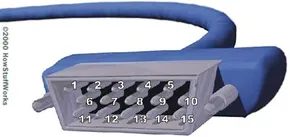
The cable that carries this analog load is a VGA connector. Technically called D-Sub, it uses 15 pins arranged in three rows. This is a large and sensitive connector that has largely disappeared from modern desktops.
VGA separates the color and synchronization signals. This separation allows for a higher pixel count than composite video, which combines everything into a single blurry stream.
The pin arrangement shows its complexity. Three pins handle the output of the primary colors: red, green and blue. The Ground returns handles each color circuit. However, there is a big difference here with TV signals. VGA sends separate horizontal and vertical sync signals. The television combines these into a composite signal. The computer separates them from each other. This separation allows computer monitors to display more pixels than contemporary televisions.
VGA is useful, but has serious limitations. Digital data cannot be sent. It does not support digital display natively. This limitation has forced the industry to come up with new standards.
Transition to digital DVI
Digital Video Interface (DVI) solves the conversion problem. Keep your data digital from GPU to screen. There is no analog conversion. There is no signal degradation at this particular stage. This is most important for LCDs that operate in an inherently digital mode.
Some early LCD monitors accepted analog input via DVI, but had to convert it back to digital internally. This defeats the purpose. A true digital connection skips the extra hop.
For years, digital signals have been touted as superior. The claim is that the images become sharper and the text clearer. In fact, this gap has narrowed as analog processing has improved. VGA seems to be fine these days. However, DVI is still clean because it respects the digital nature of the display panel.
The technology behind DVI is based on Transition Minimized Differential Signaling (TMDS). Developed by Silicon Image, TMDS is a fast digital interface. It doesn’t just blast data. It optimizes it.
A transmitter on the graphics card sends the data to the receiver inside the monitor. TMDS analyzes resolution and refresh rate. Spread the signal over the available bandwidth. This optimization ensures efficient data transfer. Reduces electromagnetic interference. It keeps the image stable.
Switching from analog to digital isn’t just about improving the specs. It’s about alignment. Computers are digital. The display is digital. Forcing them to talk via analog waves is a compromise. DVI removed the compromise. It created a direct line of communication.
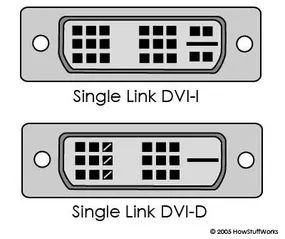

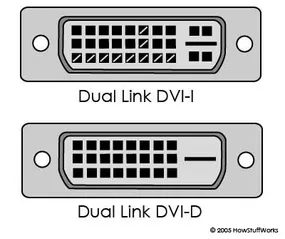
Not all DVI cables are created equal. The difference is how many data transmitters are on the line. Use one TMDS transmitter with single link cable. Dual link cables pack in two.
This hardware difference determines the maximum resolution. The maximum resolution of single link is 1920×1080. A regular HD screen is fine. However, if you want more pixels, you need a dual link. This configuration supports resolutions up to 2048×1536. Think of it as the difference between a two-lane highway and a four-lane highway for video data.
Digital and analog: DVI-D and DVI-I decoding
When you buy a monitor or adapter, you’ll see two main types of connectors. They look similar but have different uses. Understanding the differences can help you avoid buying the wrong cable for your system.
DVI-D stands for DVI Digital. This is a purely digital format. If you need this feature, both the video adapter and the display must have a DVI-D port. Connectors tell stories through their pins. The dual-link DVI-D connector has 24 pins in three rows of eight and a ground slot. 18 pins are shown in support of single link. There are no analog signals here. This is pure, uncompressed digital video.
Next is DVI-I. The “I” stands for Integrated. This connector handles both digital and analog transmission. This is a universal donor in the DVI world. Physically, it includes all DVI-D pins for digital support. However, four additional pins are added. These four pins carry analog signals. This flexibility allows you to connect it to any display that accepts a digital input. Alternatively, you can drop down to analog if you prefer.
Matching Your Hardware
Connecting old graphics cards to new monitors can often cause confusion. Here’s how to avoid a blank screen:
If your monitor only has a DVI (digital) input, you will need a video adapter with a DVI-D or DVI-I connection. Both work because the display requires a digital signal.
In the opposite situation, you need to be more careful. If your video adapter only has an analog VGA connection, you will need to find a monitor that supports analog formats. Without an active converter, you cannot force a pure digital DVI-D display to display an analog signal. Passive cables cannot cross this gap.
You need to check the physical pins of the connector. If you see 4 extra pins around the flat blade, it’s DVI-I. If the area is empty or filled with plastic, it is DVI-D.
This pin configuration is important because DVI-I connects to a DVI-D port. Additional analog pins have no effect. However, the problem occurs when you connect a DVI-D cable to the DVI-I port of an analog-only display. The display is not receiving the required signal.
Let’s keep the right standards. Check the pin layout. Make sure the adapter matches the input type of your monitor. It’s a small detail that can save you a lot of frustration.