



You send them every day. Maybe a dozen times before lunch. It is easy to forget that behind every “Send” click, billions of messages are weaving across the globe. You assume a complex, guarded fortress is involved. It is not.
Email is deceptively simple. If you look past the spam filters and security certificates, the core mechanics are primitive. You might wonder how a message jumps from your laptop to a friend on the other side of the planet. Or what a POP3 server actually does with your mail.
The answers are less sci-fi and more “basic plumbing.” We are digging into the guts of the system.
Зміст
The First Click: 1971
Ray Tomlinson changed everything in 1971. Before him, messaging was local. You could talk to someone on the same machine. You couldn’t go further. Tomlinson, an engineer, saw the potential to bridge machines.
His solution? The @ symbol.
It designated the receiving machine. Suddenly, you weren’t just talking to your own computer. You were talking to the network. That single character remains the anchor of global communication.
It’s Just Text
Here is a fact that surprises people. Email was never designed for pictures. Or videos. Or formatting.
It is a text message.
Always has been. Even today. The body of your email is plain text. Sure, you attach files. Those attachments get broken down into text strings (usually Base64 encoding) for transport. They are still just text moving through text pipes. The length doesn’t matter. The complexity doesn’t matter. It’s all data.
The Tools You Use (And Ignore)
You rely on an email client to read all this text. You probably don’t think about it. You just see an inbox.
Whether you are using a desktop beast like Microsoft Outlook or Outlook Express. Or the web-based readers from Hotmail or Yahoo. Or even the legacy AOL reader. The interface changes. The core function does not.
Every client, no matter how “smart,” does four things. That’s it.
- Lists your mail. It shows message headers. Sender, subject, time, date, size. You see the metadata, not the content.
- Opens the message. You click a header. It displays the body. The text. The actual communication.
- Writes new mail. You type the address. The subject. The body. You push it out.
- Handles attachments. You can save what you get. You can attach what you send.
That is the entire job description. Sophisticated clients add bells and whistles. Search filters. Rules. Integration with calendars. But strip it down? It’s a text viewer. A text writer.
The Server Side
We’ve looked at what you see. The client. The text. The headers.
But who holds the mail?
This is where the POP3 server enters the chat. It is not magic. It is storage. It is a waiting room. When you send an email, it doesn’t fly directly to your friend’s computer. Not usually. It goes to a server. Then another. And another.
The POP3 server is one of the protocols that helps move this text around. It allows your client to retrieve messages from a remote server. You download them. They move to your device. They leave the server’s queue.
But why does this matter?
Because understanding that email is just text, moving through simple servers, changes how you view security. It changes how you view privacy. It’s not a secret vault. It’s a postcard system that somehow learned to hide in envelopes.
We will keep pulling back the layers. The infrastructure is built on assumptions made forty years ago. Assumptions that still hold the internet together.
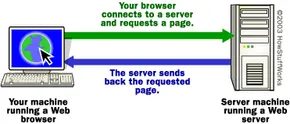

You have the client. You are ready to send and receive. But the client is useless without a destination. You need an email server. Think of it as the post office for your digital mailbox.
Let’s strip away the enterprise-grade complexity. What does the simplest possible email server look like? If you understand how web servers work, the concept is similar. Machines on the Internet run software applications that act as servers. They sit there. They listen. They wait for connections on specific ports.
The logic is brutal in its simplicity.
The File-System Approach
Imagine a server that doesn’t use a database. It doesn’t use complex indexing. It just uses text files.
Here is the basic architecture:
- Account List : The server maintains a list of users. If your username is mbrain, the server knows you exist. If John Smith uses jsmith, that’s another entry.
- Individual Files : For each account, there is a single text file. Your inbox is
MBRAIN.TXT. John’s isJSMITH.TXT. - The Append Operation : When you send a message, the server doesn’t “file” it in a traditional sense. It just adds a new line to the bottom of your text file.
The Transaction
When you hit “Send” in your client, three things happen:
- The client connects to the server.
- It passes the recipient name (
mbrain). - It passes the sender (
jsmith) and the message body.
The server grabs the MBRAIN.TXT file and appends the data. It might look like this:
From: jsmith To: mbrain Marshall, Can we have lunch Monday? John
That’s it. No encryption. No spam filters. No virus scanning. Just a text file with a new line at the bottom.
Why Simplicity Matters
This model reveals the core function of email storage. The server’s job is to accept data and persist it until the recipient retrieves it. Modern systems are vastly more complex. They use SQL databases, cloud storage, and distributed systems. But the fundamental contract remains: send to a port, store in a user-specific bucket, wait for retrieval.
There are other fields involved. The timestamp. The date. The subject line. But the mechanism is identical. Append. Done.
We will now look at the SMTP server. That is where the actual routing happens.

The Real Email System
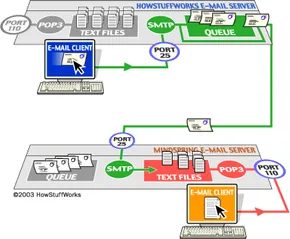
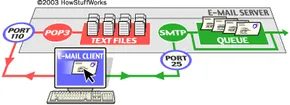
Forget the file appending. The system you actually use daily isn’t a text file sitting on a hard drive waiting to be parsed. It is a two-server machine. You have one side for sending and another for receiving.
The sending side is the SMTP server. SMTP stands for Simple Mail Transfer Protocol. It handles outgoing mail. Period.
The receiving side is either a POP3 server or an IMAP server. These handle incoming mail. POP stands for Post Office Protocol. IMAP stands for Internet Mail Access Protocol.
A typical email server setup looks like this:
The SMTP server listens on port 25. This is a well-known port. The POP3 server listens on port 110. The IMAP server uses port 143.
You might wonder why there are two protocols for incoming mail. Why not just stick to one? It comes down to how you want to manage your messages. POP3 tends to download and delete, treating mail like physical letters you pick up from a post office. IMAP keeps messages on the server, syncing them across devices so you can read the same inbox from your phone, laptop, or tablet.
But before we get into the nuances of syncing, let’s look at how mail actually leaves your hand. That is where the SMTP server comes in.

Sending an email feels instant. You hit send. The message leaves your screen. But underneath that simple click, there is a complex handshake between servers. Your email client talks to an SMTP server. That server talks to other SMTP servers. The goal is delivery.
Let’s trace a specific path. You are “brain” at howstuffworks.com. You want to reach “jsmith” at mindspring.com. You are using a standalone client like Outlook Express.
The Initial Handshake
When you created your account, you entered mail.howstuffworks.com as your mail server. You press Send. Here is the sequence.
Outlook Express opens a connection to that server on port 25. This is the standard SMTP port. It isn’t encrypted by default in this basic setup. It is a plain text conversation.
Your client tells the server who you are and who the recipient is. It includes the message body. The server parses the “to” address. It splits jsmith@mindspring.com into the user part (jsmith ) and the domain part (mindspring.com ).
If jsmith were also on howstuffworks.com, the server would handle it internally. It would pass the message to its own delivery agent, which pushes it directly to the POP3 server. Simple. Local.
But jsmith is elsewhere. The server must communicate with another domain.
DNS and Route Finding
The SMTP server at howstuffworks.com doesn’t know where mindspring.com lives on the network. It asks a Domain Name Server (DNS).
It sends a query: “What is the IP address for the SMTP server at mindspring.com?”
The DNS replies. It provides one or more IP addresses for Mindspring’s mail infrastructure. The server now has a destination. It connects to the Mindspring SMTP server, again using port 25.
The conversation repeats. Your client spoke to the first server. That server speaks to the second. The text commands are identical. The message is handed off. Mindspring’s server recognizes the domain. It routes the mail to its POP3 server. Jsmith’s inbox fills up.
What Happens When It Fails?
Networks break. Servers go down. If the howstuffworks server cannot reach Mindspring, the message does not disappear. It sits in a queue.
Most machines use a program called sendmail to handle this queue. It is the engine behind the scenes. Sendmail retries periodically. A common interval is every 15 minutes.
It keeps trying. For four hours, it attempts delivery. If it still fails, it sends you a notification. A bounce message. An error report. You will know something went wrong.
Eventually, it gives up. Usually after five days, most sendmail configurations discard the message or return it to you as undelivered. The cycle is complete, but unsuccessfully.
The Language of SMTP
The entire exchange relies on simple text commands. They are not complex. They are structural.
- HELO – Identify yourself to the remote server.
- EHLO – Identify yourself and request extended mode. This is the modern standard.
- MAIL FROM: – State the sender.
- RCPT TO: – State the recipient.
- DATA – Begin the message content. The first three lines are usually To, From, and Subject.
- RSET – Reset the current transaction. Start over.
- QUIT – Close the session.
- HELP – Request documentation for commands.
- VRFY – Verify if a specific user exists.
- EXPN – Expand a mailing list.
- VERB – Enable verbose output.
These commands form the skeleton of email delivery. They are human-readable. You can observe them in network traces. They reveal the logic of the internet’s postal system.
The POP3 and IMAP Servers

Simple POP3 setups were essentially just text files. A server would store each account’s mail in a single file, appending new messages to the bottom. When you checked your inbox, your client connected via port 110. You entered a username and password. Once authenticated, the server opened that text file and let your client read it.
The protocol was brutally simple. You used basic text commands:
- USER – type your ID
- PASS – type your password
- QUIT – close the connection
- LIST – see message sizes
- RETR – pull down a full message
- DELE – mark a message for deletion
- TOP – peek at the first few lines
Your client would grab these messages and save them locally. Then, by default, it deleted the originals from the server. The server was just a dumb interface between the client and a file. You could even test this manually using telnet.
The IMAP Server
POP3 had limits. It downloaded mail to one machine. Once it was gone from the server, you couldn’t access it elsewhere. This was a problem if you switched between a desktop and a laptop. You wanted your email to follow you.
IMAP (Internet Mail Access Protocol) solved this. It kept your messages on the server. Instead of downloading everything, you synced with the server state.
Key differences:
– Folders live on the server. You can organize mail into folders, and those structures stay intact across devices.
– Searches run remotely. The server handles the search, not your local machine. This means faster results if you have a lot of mail.
– Multi-device access. Connect from any computer or phone. Your folders and read/unread status are consistent everywhere.
IMAP made email accessible from anywhere. But it isn’t perfect. The next section covers IMAP problems and how it handles attachments.

The connection between your email client and the IMAP server happens over port 143. Once linked, the client sends a series of text commands to manage your inbox. You aren’t just reading; you’re issuing direct orders. List folders. Pull headers from a specific folder. Fetch a full message. Delete items. Search the entire archive. The server responds to each command.
But this architecture creates a logical gap. If all your data lives on the server, how do you check mail when your internet cuts out? The answer is caching. Most clients solve this by downloading complete message bodies to your local hard drive. It mimics the POP3 behavior of storing everything locally, but the messages remain on the server too. You can read, draft, and reply offline. When you reconnect, the client syncs the gap. It pushes out your drafts and pulls in anything new that arrived while you were disconnected.
Handling Binary Attachments
Sending attachments is standard practice now. You attach a Word doc, a spreadsheet, a sound file, or even a piece of software. These files are binary, not text. Email protocols originally only supported text. This mismatch required a workaround.
In the early days, users had to manually encode their files using uuencode. The process was tedious. It took 3 bytes of binary data and converted them into 4 ASCII text characters. It did this by taking 6 bits at a time and adding 32 to the value. The result was an encoded text string that represented the original binary file. You ran the program yourself, then pasted the output into the body of your message.
The irony is that despite its massive societal impact, the core email system is surprisingly simple. Routing rules in servers like sendmail add complexity, but the basic mechanism is straightforward. The next time you hit send, you’ll know exactly what happens behind the scenes.
Free and Paid Email Services

The Email Economy: Free vs. Paid Services
We use email constantly. It is how we work. It is how we talk to family. A 2007 study by the Pew Internet and American Life Project showed that 91 percent of U.S. internet users were online to send or read email. Half of those people checked their inbox as a normal part of their day. The volume is staggering. The Radicati Group counted 183 billion emails sent in a single day in 2006.
This sheer volume created a massive market. You can pick from free giants or paid specialists.
Why We Choose Free Email Services
Gmail and Yahoo! do not charge you. Instead, they charge advertisers. You see ads because your messages are scanned for keywords. It is a trade you make every day.
Free services have evolved. They are not just basic mailboxes anymore.
“Gmail offers online storage that is practically unlimited.”
Gmail
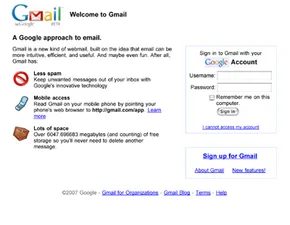
Google’s free service is a powerhouse. It handles many attachment types. It scans for spam, worms, and viruses. The biggest draw is the storage. It is practically unlimited. You can keep files for years. The interface uses sorting methods to help you sift through the noise. You find important messages quickly.
Yahoo! Mail
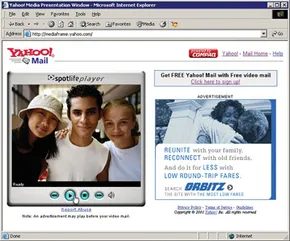
Yahoo! remains one of the most popular options. It also offers unlimited online storage. Beyond email, it includes text messaging and RSS news feeds. The organization tools are intuitive. You can use drag-and-drop features. Incoming emails are filed using more than a dozen filters. Junk mail goes straight to a spam folder.
MSN Windows Hotmail
Microsoft’s Hotmail supports 5 GB of online storage. That is less than Gmail, but still generous. The desktop design lets you customize colors and layouts. You can switch between a classic format and an updated look with new features. Microsoft security features are built-in. The familiar drag-and-drop tools add to the comfort.
When to Pay for Email
Not everyone needs free. Some users prefer paid services. Providers like Juno, EarthLink, and Webmail.us charge a fee. America Online and NetZero are also in this category.
Why pay?
- Personalized addresses. You can use your actual name.
- ISP independence. Keep the same email address if you change your internet provider.
- Privacy. Some services screen users from advertisers.
- Support. Paid plans often have easier access to support issues.
- Features. Custom spam filters, multiple accounts, and mobile access are common.
Most internet service providers also serve as an email provider for no extra charge. But for businesses, paid services specialize. They help you purchase and maintain a domain name. Small business accounts get tailored assistance.
The Human Element
Technology handles the routing. It filters the spam. It sorts the attachments. But the tone? That is up to you.
Next we’ll offer some etiquette tips for when you write and send email messages.
Why Email Etiquette Matters in Business Communication
It is easy to forget that there is a human on the other end of the screen. We talk to colleagues, clients, and supervisors without thinking twice about being rude. But when we switch to email, those social rules often disappear. The barrier of a keyboard makes it simple to be obnoxious without realizing it. Most people would never use foul language in person. But can you raise your voice in an email? Yes. You just do it by shouting in all caps or using too many exclamation marks.
This guide covers the essential business writing rules for professional email etiquette. The goal is to stop being accidentaly offensive and start being efficient.
How to Respect Busy Recipients with Email Etiquette
People are busy. They are drowning in messages. You need to make their lives easier, not harder.
-
Use the subject line. Do not skip this. It is not optional. The recipient needs a clue about what the message contains. A clear subject line helps them prioritize. It helps them organize their day. Without it, your email is just noise.
-
Be brief and concise. You might be a clever writer. You might want to be funny. Save the puns for birthday cards. In business, clarity wins. State your message quickly. Follow it with clear instructions. Tell them exactly what you need. Do not bury the lead.
-
Keep it personal. Stop copying everyone on every email. It clogs mailboxes. It makes the main recipient wonder why you are pulling in extra people. Unless there is a specific reason, keep the conversation between the sender and the recipient. Less noise is better.
-
Reply quickly. Do not let emails sit in your queue. It looks like you do not care. Get back to the sender. If you need more time, say so. A quick “I am looking into this” is better than silence.
How to Avoid Offending People with Email Etiquette
People are sensitive. Text lacks tone. This makes misunderstandings easy.
-
Don’t over-punctuate. Do not write “Really???” or “What!!!!” It looks like shouting. It looks like frustration. Use normal punctuation. Let your words do the talking.
-
Don’t use all capitals. ALL CAPS IS SHOUTING. It is rude. It makes you look aggressive. If you need to emphasize a point, write it out. Say “I’d like to emphasize…” instead of screaming it in text.
-
Read it out loud before you send. This is a critical step. Read your email to yourself. Put yourself in the recipient’s shoes. Does it sound harsh? Does it sound clear? Once you hit send, you cannot take it back. Remember that the recipient has a printer. They have a “forward” button. Never write something you would not want circulated throughout the company. Or worse, outside of it.
-
Don’t write when you are angry. This is the most common rule people break. You are mad at them. You are mad at a situation. You fire off an email. Then you regret it. You cannot take back a “flame.” It can haunt you for years. Wait until you are calm. Read it again. Then send.
How to Communicate Clearly Without Using Email Etiquette Mistakes
Not everyone is as hip as you are. Or maybe they just don’t speak your slang.
-
Keep symbols to a minimum. Emojis are trendy. They convey mood. But do you know the difference between a sarcastic smile and a mischievous one? Neither does your recipient. It is easy to unintentionally offend someone. Avoid using them in professional settings.
-
Minimize abbreviated phrases. Do not use IMHO or FWIW. Do not write ROTFL. It frustrates people. It confuses them. Not everyone knows these acronyms. Spell it out. Be clear.
Email is a business letter. It is not a text to your best friend. Ignoring basic rules shows disrespect. It damages your reputation. Do not let informality spoil how people see you.
For more on how the infrastructure behind email works, look into the related articles below.
Related HowStuffWorks Articles
-
How Web Servers Work
-
How Domain Name Servers Work
-
How Internet Infrastructure Works
-
How Routers Work
-
How Web Pages Work
-
How Bytes and Bits Work
-
How Computer Viruses Work
More Great Links
-
RFC 822
-
RFC 1123
-
Post Office Protocol


