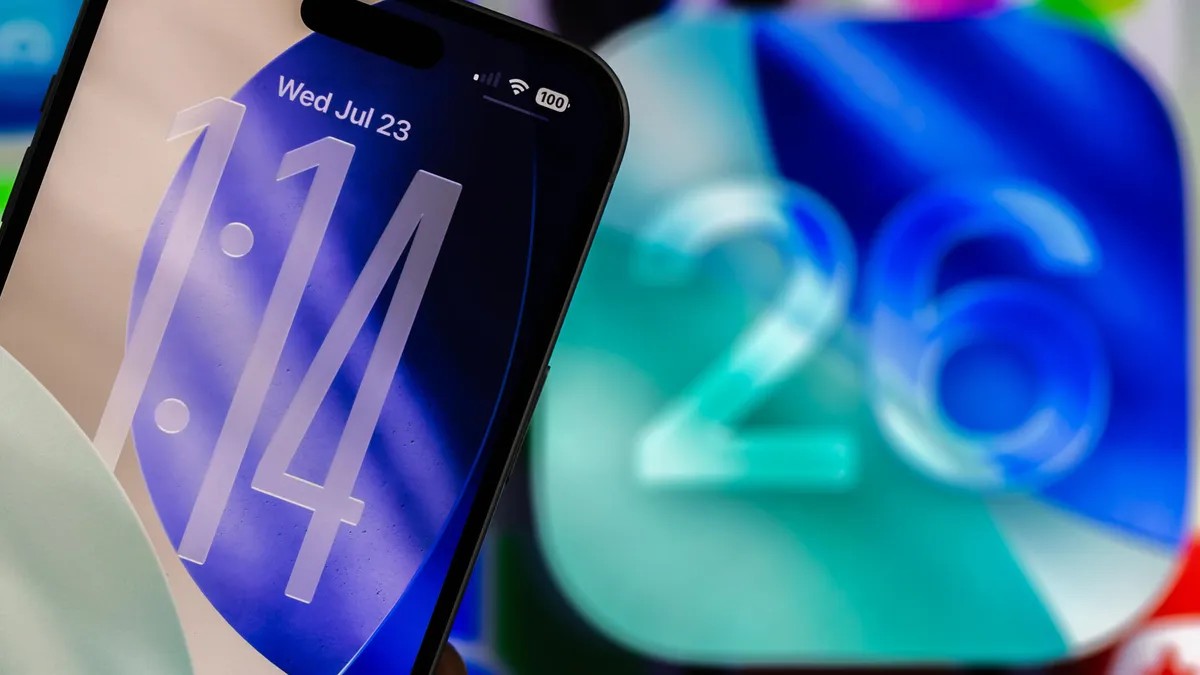
With the release of iOS 26.1 this November, Apple introduced more than just background security patches; it brought a significant level of control over the iPhone’s visual interface. Specifically, the update allows users to adjust the “Liquid Glass” design elements that have become a staple of the new operating system.
This update is particularly important for users who have struggled with legibility. Following the launch of iOS 26, many users reported via platforms like Reddit that certain interface elements were difficult to read due to their transparency. The new settings in 26.1 provide a direct solution to these usability concerns.
Understanding Liquid Glass
“Liquid Glass” was introduced in September alongside iOS 26, marking the most significant visual overhaul of the iPhone interface since the release of iOS 7 in 2013.
Previously, customization was limited to broad strokes: you could either apply a dark tint to the home screen or use the “Reduce Transparency” accessibility feature, which altered the look of the entire device globally. The new update offers a more surgical approach, allowing you to modify specific UI components—such as the Notification Center and certain search bars —without disrupting the aesthetic of your home screen.
How to Adjust Your Settings
If you are running iOS 26.1 or later, you can access these new customization options by following these steps:
- Open the Settings app.
- Select Display & Brightness.
- Tap on the new Liquid Glass menu.
Within this menu, you will find two primary modes:
- Clear (Default): This setting prioritizes transparency, allowing the colors and content beneath the interface to bleed through. While visually striking, it can occasionally lead to low contrast.
- Tinted: This option increases opacity and adds more contrast. It doesn’t make menus completely solid, but it minimizes the “see-through” effect. For example, a search bar in the Messages app will appear much more opaque, only revealing underlying colors when you scroll over bold or bright content.
Design Flexibility
It is important to note that these Liquid Glass settings operate independently of your system-wide appearance mode. You can mix and match them freely:
– Light Mode with Tinted Liquid Glass.
– Dark Mode with Clear Liquid Glass.
This independence allows for a highly personalized experience, enabling users to prioritize either a sleek, translucent aesthetic or a high-contrast, functional interface based on their environment or visual needs.
Summary: The iOS 26.1 update provides much-needed granular control over the Liquid Glass interface, allowing users to balance the new aesthetic with practical readability through “Clear” or “Tinted” modes.